🧭 Four changes that shape play and creation
| Feature area | What changes for the player | Where to learn more |
|---|---|---|
| Platformer mode | Movement includes left and right control instead of only automatic scrolling | Read the selected level’s controls and checkpoints |
| Swing form | Gravity can reverse during continuous flight | Swing movement guide |
| Camera tools | The view can move, rotate, or zoom around the route | Transition reading |
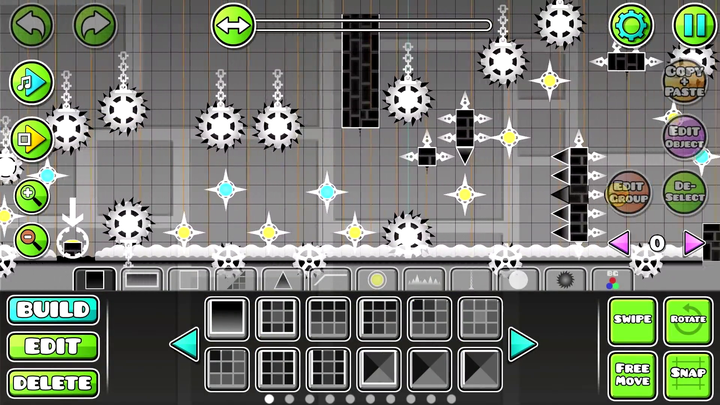
| Expanded editor tools | Creators can build more varied movement and presentation | Readable level workflow |
Classic completion rewards use stars; Platformer rewards use moons. That is a level-type distinction, separate from the form being controlled. Wave and Swing are unavailable as ordinary Platformer modes, so neither a star/moon total nor an eight-mode list describes every kind of level.
Classic and Platformer ask different questions
In a classic course, the stage advances automatically and your input chooses jumps or form actions. In Platformer mode, you also control horizontal movement. Exploring a room, stopping, and choosing a direction change the pace of a level.
A Platformer creator can place checkpoints used during normal gameplay. Do not call every checkpoint restart a practice run, or require a continuous Classic-style attempt where the level’s own rules include restarts. Read the level’s movement and checkpoint design before applying a Classic cue.
 Geometry Dash mini portal
🪽 Swing adds another flight rule
Swing reverses gravity in the air while motion continues. It is distinct from held ship thrust, ordinary ball surface switches, and instant spider transfers. Learn the rule before trying to reuse a familiar tapping pattern.
The mode comparison keeps those distinctions in one place, including what a release or pause between inputs means for each form.
🎥 Separate camera motion from the route
Camera Zoom changes the view; Rotate Gameplay changes the direction of play. They can appear together, so separate what moved on screen from what changed the route. A familiar platform can look different while the required input stays the same.
While practicing, identify a safe target after the effect rather than relying on one screen coordinate. Your path is defined by the level’s geometry, even when the presentation is busy.
Try Dash with practice checkpoints
Select Dash in the demo’s Classic level menu to try Swing in context. Open the pause menu with Escape to enable practice, then use Z to place a checkpoint and X to remove one. Learn the approach before the difficult section so the restart includes the entry you need to practise.
Choose the relevant next step
For native creation tools, read the editor guide. For a compact spin-off with active camera presentation, see SubZero. The home page launches the classic griffpatch adaptation; the Scratch guide explains the separately playable Ge-NET-ry Dash project.