🌀 Ask what changes—and what carries through
Recognise the portal family as well as its color. Different families can reuse colors, so shape and the icon’s result matter. A form portal changes the movement mode; Classic or Platformer is a level-wide game type, not a form you switch into halfway through a course.
Identify the new rule before you decide to press faster. A ship entrance asks you to manage flight. A gravity change asks you to read a different surface. A size change alters the space your icon occupies and can change how a route feels. Speed changes reduce or increase the real time available between objects.
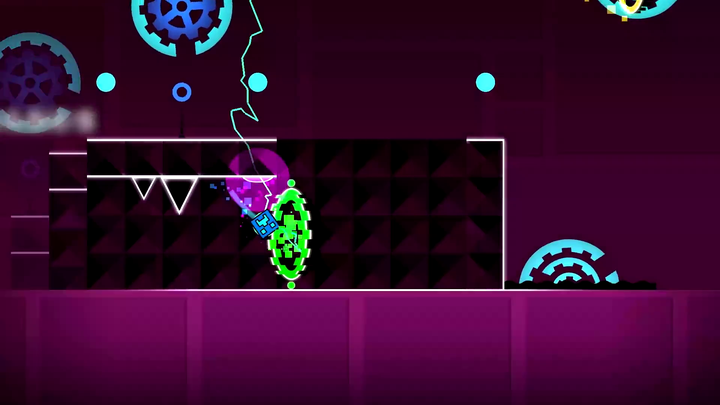
 Geometry Dash dual portal
The transition checklist
- Which form will I control after the entrance?
- Which direction is gravity acting?
- Am I entering at normal or mini size?
- Will the course move faster or slower?
- What is my first safe target after the portal?
Do not answer all five as a spoken list during a fast run. Use them while studying a section so the transition becomes a short, familiar instruction.
🚪 The last input before entry
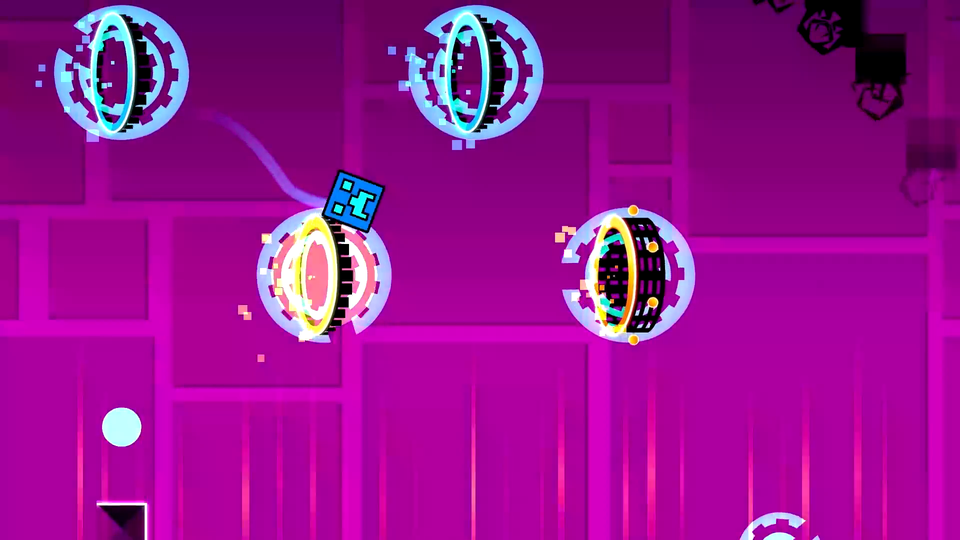
Your entry state can matter as much as the first action afterward. A held cube jump may become thrust when you enter a ship section. A release just before the portal may change the height or momentum you bring into the next corridor.
Practice from far enough before the entrance to preserve that setup. Starting a checkpoint after the portal can hide the cause of a repeatedly bad entry.
Different transition families
| Change | Read on the far side | Common misread |
|---|---|---|
| Form | The new press and release behavior | Continuing the old tapping pattern |
| Gravity | The new landing surface | Treating the screen’s lower edge as the only floor |
| Size | The usable corridor and movement response | Assuming a smaller icon makes every section easier |
| Speed | The spacing in time, not just in pixels | Pressing at the old rhythm |
| Dual | Both active routes together | Watching only the more obvious icon |
Ordinary Dual sends the shared action to both icons. In a 2-Player setup, the two sides can use separate controls. Study both routes before copying a single-icon rhythm, and read the level’s control setup before assuming which input reaches which icon.
When the screen moves too
Camera zooms, rotations, and direction changes in the official 2.2 feature set can make a transition look more dramatic than its input rule. Separate the camera’s motion from the icon’s actual route. The camera is not itself a new button command.
The SubZero guide focuses on handling visual changes. The 2.2 overview explains the broader feature set without treating it as the browser player’s version.
🎯 A transition drill
Make a short run that includes the final action before the portal, the entrance, and the first two decisions afterward. When those become reliable, extend the exit. This catches the awkward handoff that an isolated corridor drill can miss.