⌨️ The main input
| Input | Classic browser action | Before using it |
|---|---|---|
| Space | Jump or activate the current form | Click inside the game so the page does not scroll |
| Up Arrow | An alternative main action | Click inside the loaded game to give it keyboard focus |
| Left mouse button | Press or hold the main action | Click the play area rather than the surrounding page |
| Touchscreen | Tap or hold on the game | Keep the screen clear of browser gesture edges |
The home player’s Scratch export uses P to pause and L to change visual quality. Those are confirmed project shortcuts, not universal Geometry Dash keys. The separate Scratch player has different pause and resume keys; check its own controls.
Tap, hold, release
A tap is a distinct press followed by a release. A hold keeps the action active. Releasing is an action too: in ship or wave sections it changes the flight path even though you are not pressing a new key.
On a grounded cube, keeping the input held can repeat jumps as landings become available. That is handy for a regular jump sequence and risky when the next platform requires you to stay down. In UFO sections, separate presses create separate lifts; holding is not a substitute for choosing the next flap.
📱 A touch setup that stays consistent
Turn the device to landscape before starting a run, then let the player settle at its new size. Put your tapping finger away from the cube’s approach path. A hand covering the next spike is a visibility problem that no timing guide can solve.
Use one comfortable tapping spot. Do not alternate hands simply because a run went badly. If browser gestures keep interfering, use a point farther from the screen edge and test it on the first few jumps. Fullscreen availability depends on the device; the player offers a window-filling fallback.
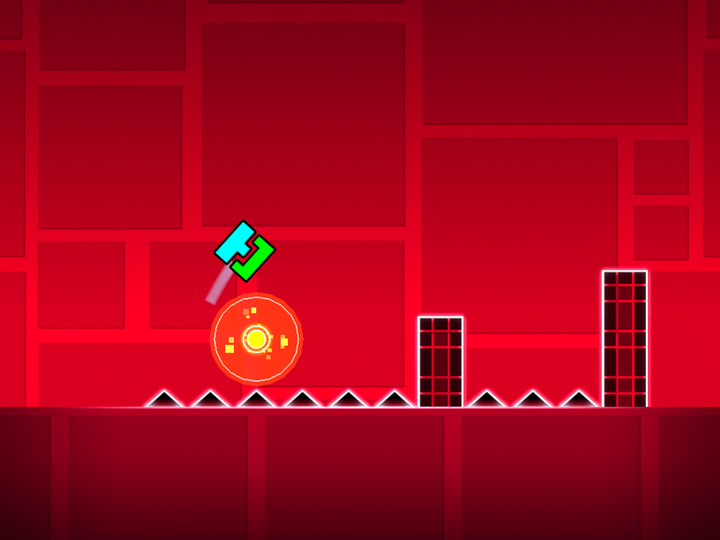
 Geometry Dash hand pointer
🖱️ When a key seems dead
Check the state
Make sure the game has passed its loading screen and a level is actually running.
Give the player focus
Click inside the play area, then press the key once. Keyboard focus can remain there even after the pointer moves away; hovering over the player is not what sends it keys.
Compare one other input
Try the mouse. If clicking works but the key does not, focus or a shortcut conflict is more likely than a broken level.
Classic movement and other control schemes
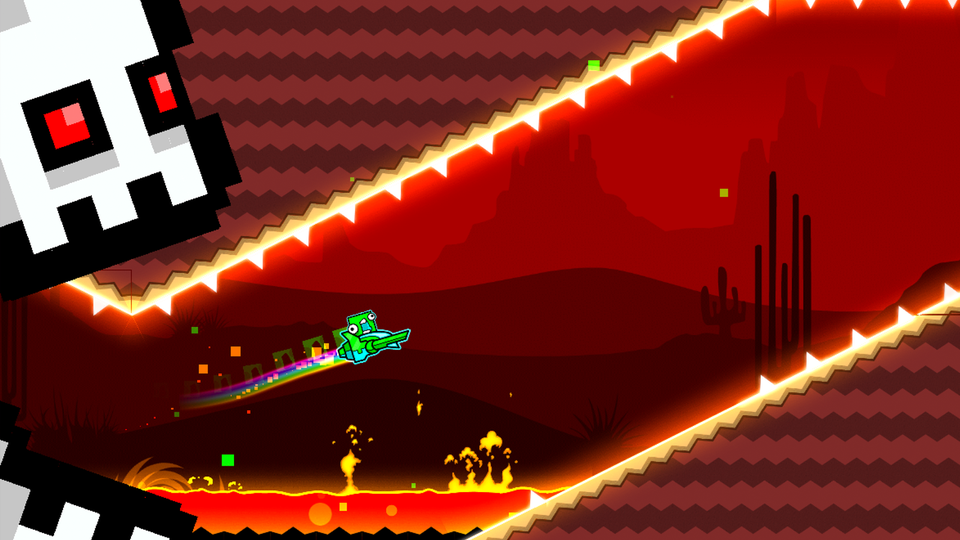
Classic levels scroll on their own. Left and right movement belongs to the separate Platformer mode in the official game. A browser adaptation with classic levels does not gain Platformer controls because its page mentions 2.2.
Extra keys, controller support, and rebinding vary by edition. Keep the distinction between the Scratch project and the official 2.2 feature set in mind.